Vibe Coding for mobile with Cursor AI 使用Cursor AI進行移動端氛圍程式設計
How to build an iOS app in just a few minutes with AI
即使到了2025年,產品設計和開發之間仍存在差距:設計軟體裡的效果往往和最終產品不一致。這主要源於設計和開發團隊之間的溝通。雖然讓一個人同時負責設計和開發可以解決這個問題,但大多數UI設計師不會程式設計。
比如Cursor AI、Lovable和Bolt。這些工具可以用AI來建立完整的產品。隨著這些AI工具的發展,出現了一種新型的專業人員—氛圍程式設計師vibe coders。他們雖然不是專業程式設計師,但懂得如何用AI來生成程式碼。
在這篇文章中,我將向你展示如何使用Cursor AI來開發一個簡單的iOS股票檢視應用。我們會一步步學習如何有效地使用AI工具來幫助開發,並且也會討論這種方法的優點和侷限性。
使用AI構建iOS應用所需的準備
你需要準備以下3樣東西:
- Macbook或iMac電腦
- Xcode。這是用於macOS的整合開發環境,用於開發macOS、iOS和iPadOS軟體。
- Cursor AI。Cursor AI是一個帶有AI代理的開發環境,用於生成程式碼。
第一步:在Xcode中建立新專案
在Xcode中你只需要做一件事,就是建立新專案。導航到iOS選項卡並點選應用程式:
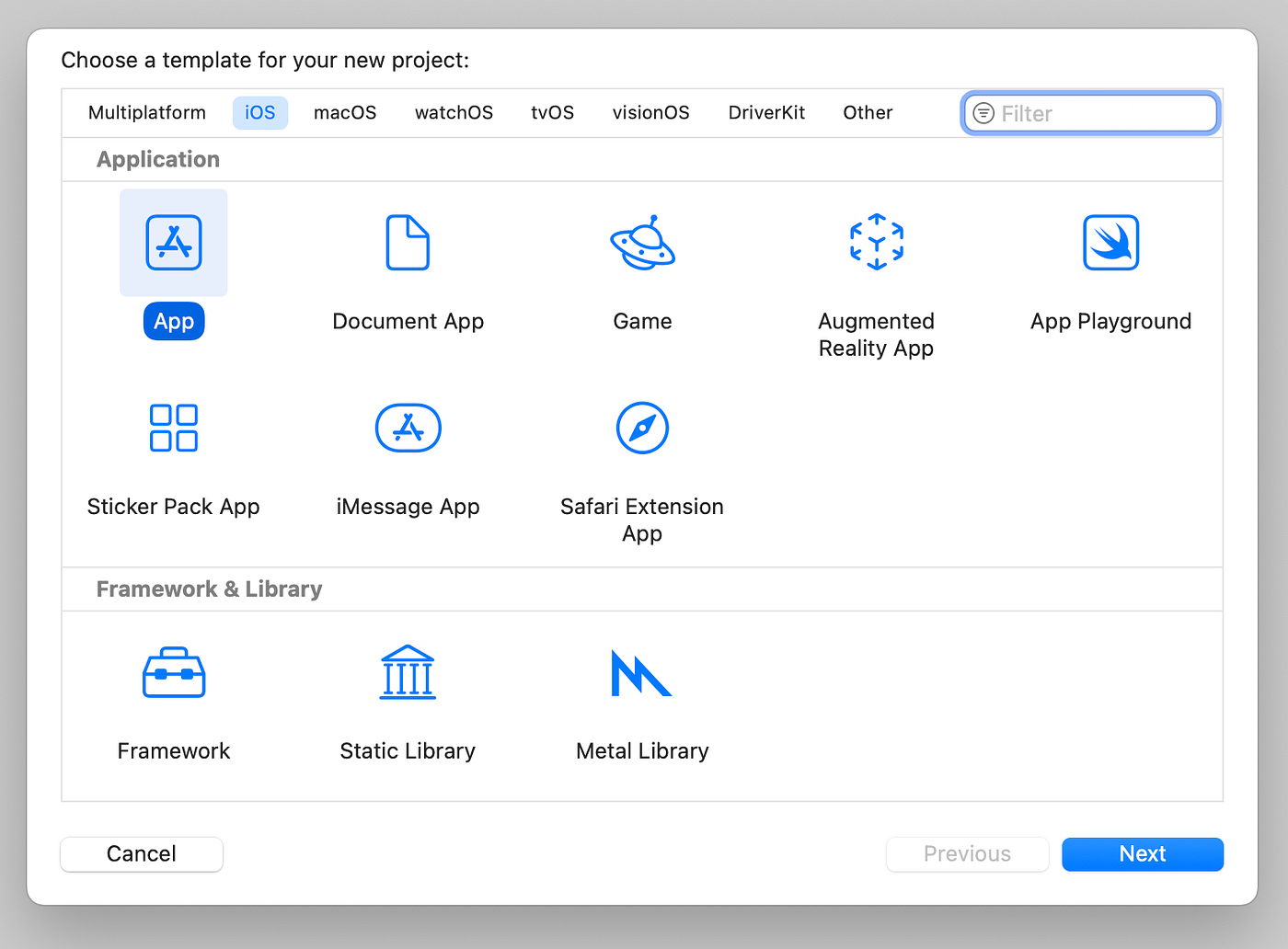
在Xcode中選擇專案模板:
點選"下一步"後,你需要為專案命名並選擇儲存位置。
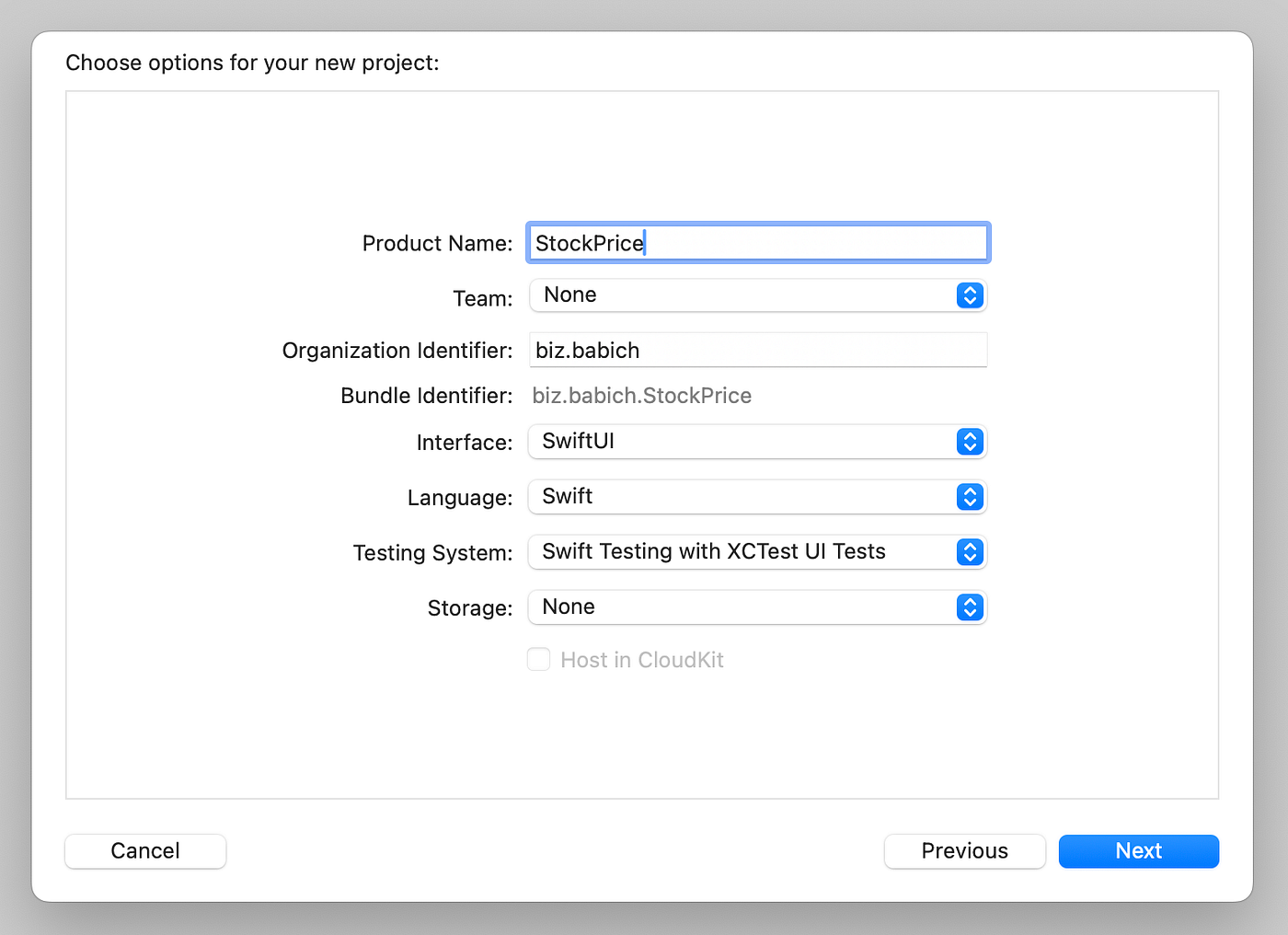
在Xcode中命名專案:
Xcode建立的專案將是最基礎的它只包含必要的檔案和一個螢幕(iOS使用檢視的概念,因此從技術上講,它將是一個帶有Hello World的ContentView檢視)。確保Xcode可以構建專案,並且可以在預覽中看到。
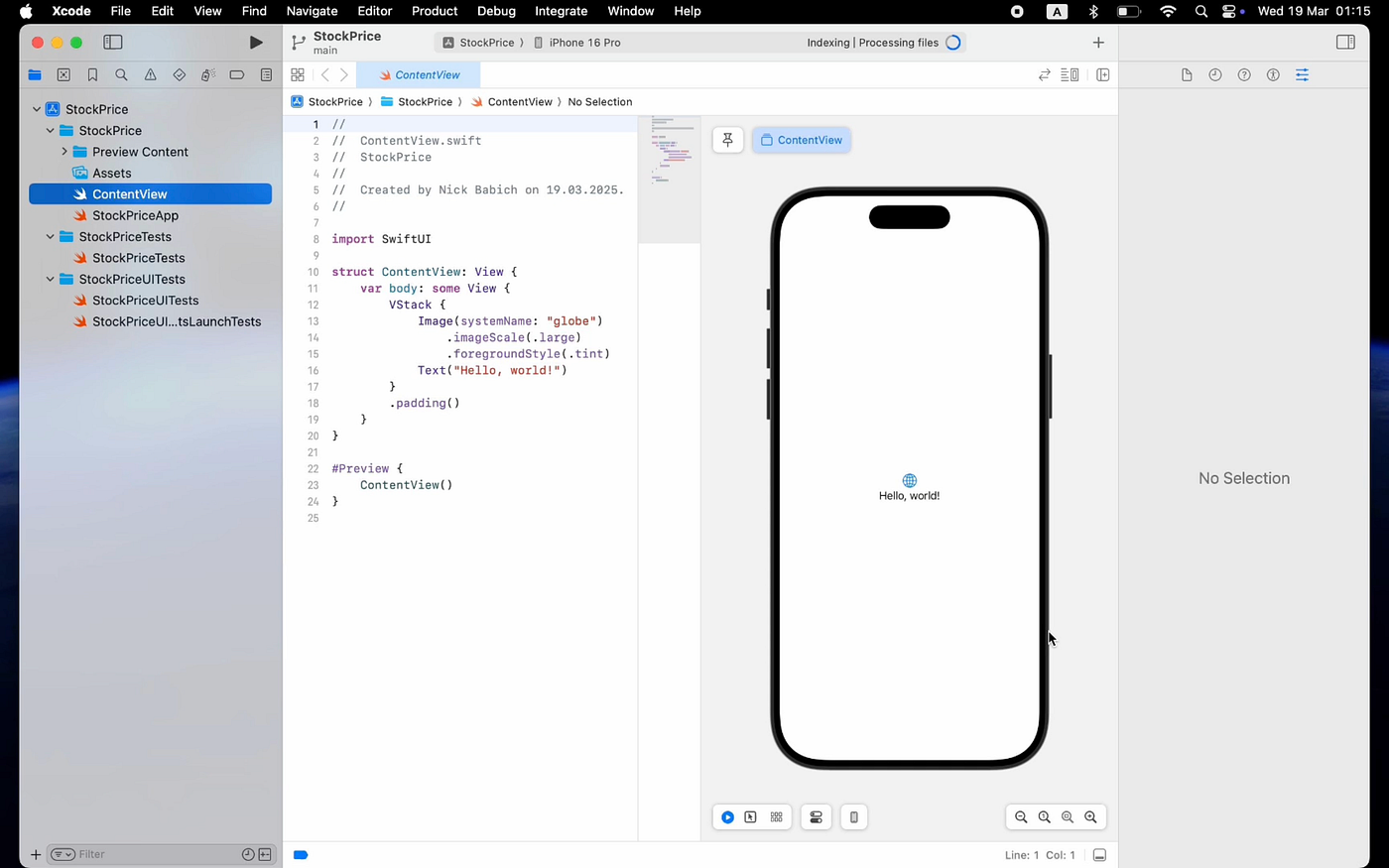
建立專案並確保Xcode可以構建它後,你就可以轉到Cursor AI來生成程式碼了。
第二步:在Cursor AI中開啟iOS專案
當你在Cursor AI中開啟專案後,你會看到你的工作環境。如果你之前使用過Visual Studio Code這樣的IDE,Cursor AI的介面會讓你感到很熟悉。基本上,它就是在VS Code的設計基礎上增加了一層AI功能。
大多數時候,你會與3個面板進行互動:
- 左側面板是專案檔案樹
- 底部面板是終端
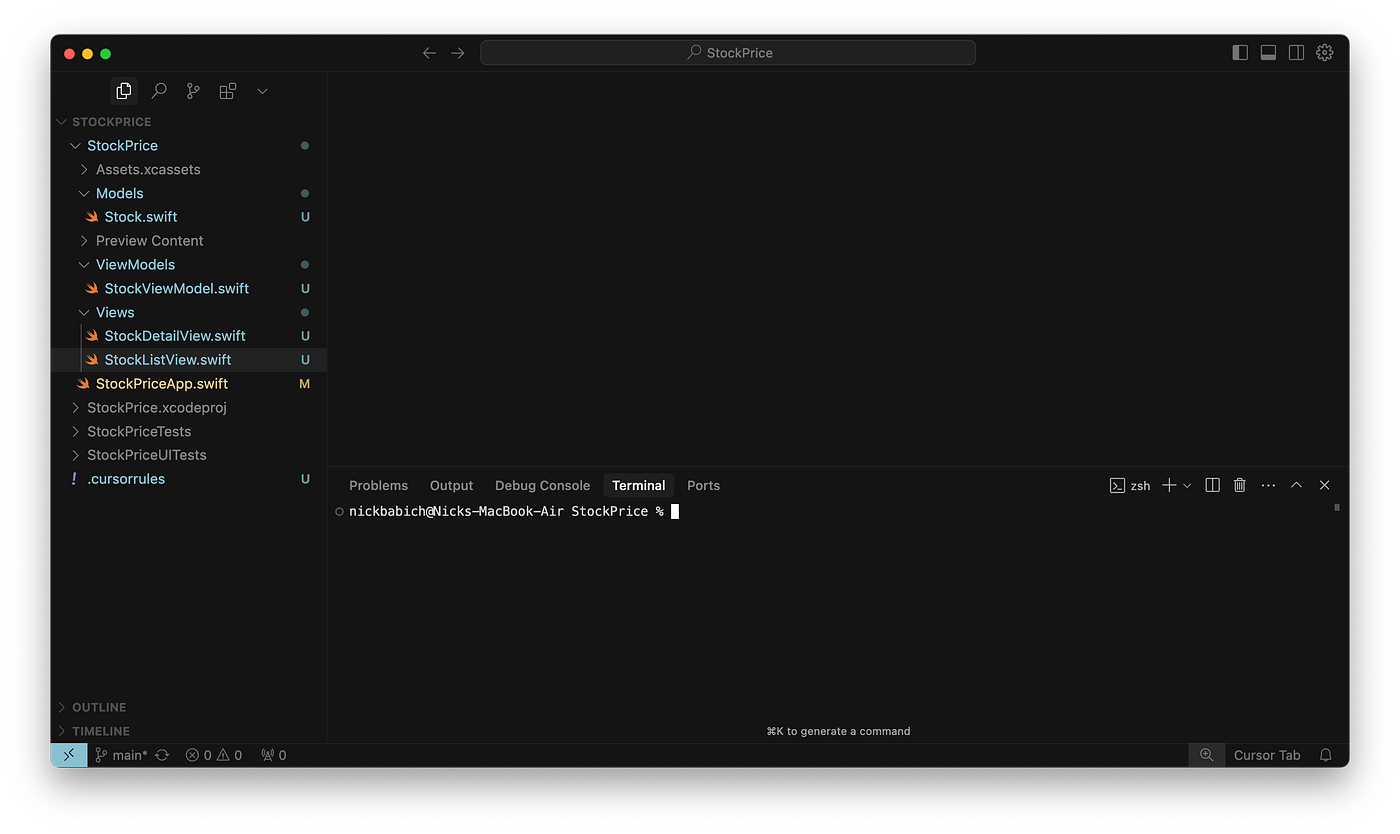
Cursor AI中開啟的左側和底部面板。
- 右側面板是AI助手面板。
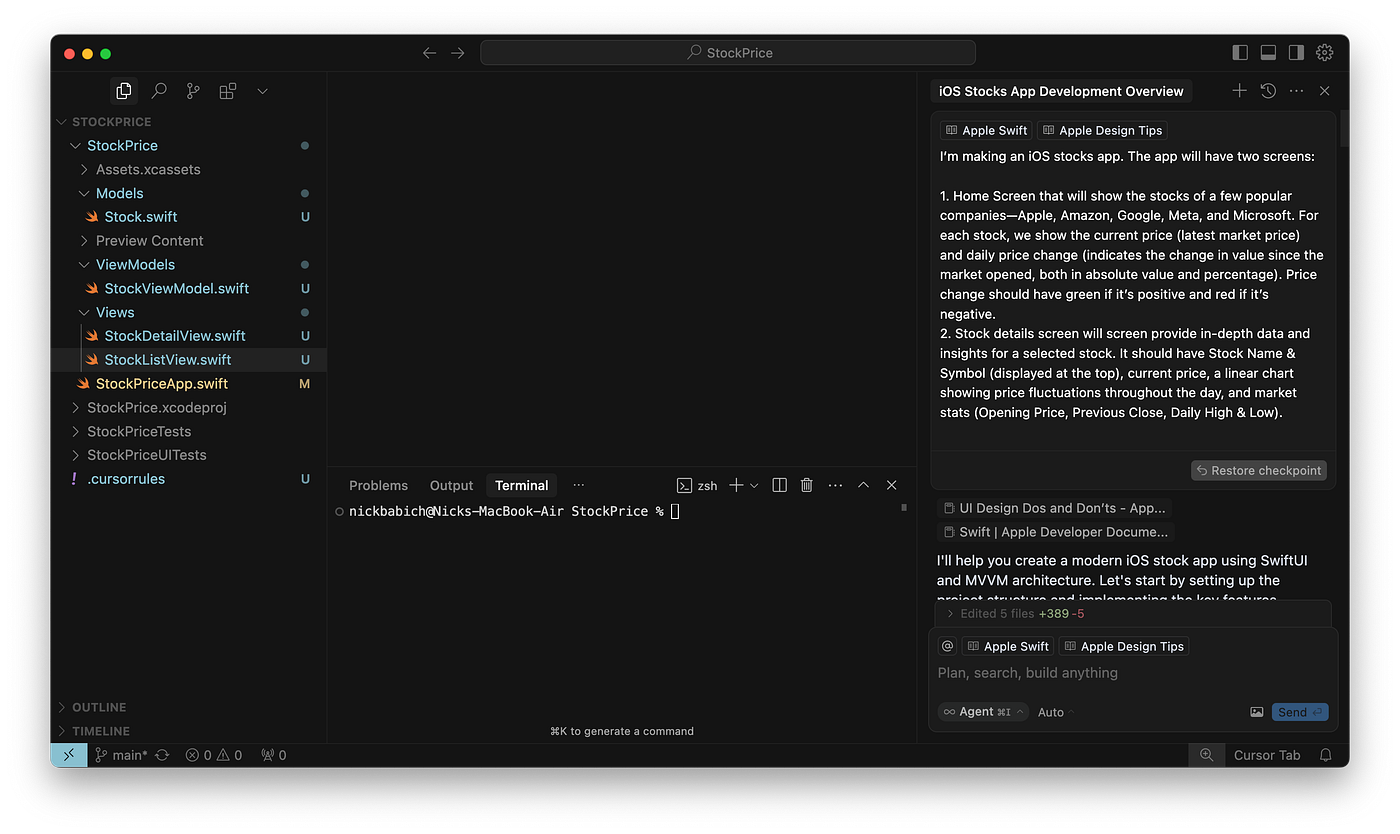
在Cursor AI中開啟的所有三個面板。
所有神奇的事情都將發生在第三個面板 — AI助手面板中。我們將透過提示AI代理來生成程式碼。如你在我的示例中所見,我已經提供了一個構建股票價格應用的提示。一旦我點選傳送,AI代理就會執行任務併為我生成程式碼。
第三步:充分利用Cursor AI
在傳送第一個提示之前,你需要檢查幾個事項以充分利用Cursor AI。首先,確保新增.cursorrules檔案,在其中提供Cursor在編寫程式碼時應遵循的具體指令。由於我正在構建iOS應用,我將提供SwiftUI的相關指令。
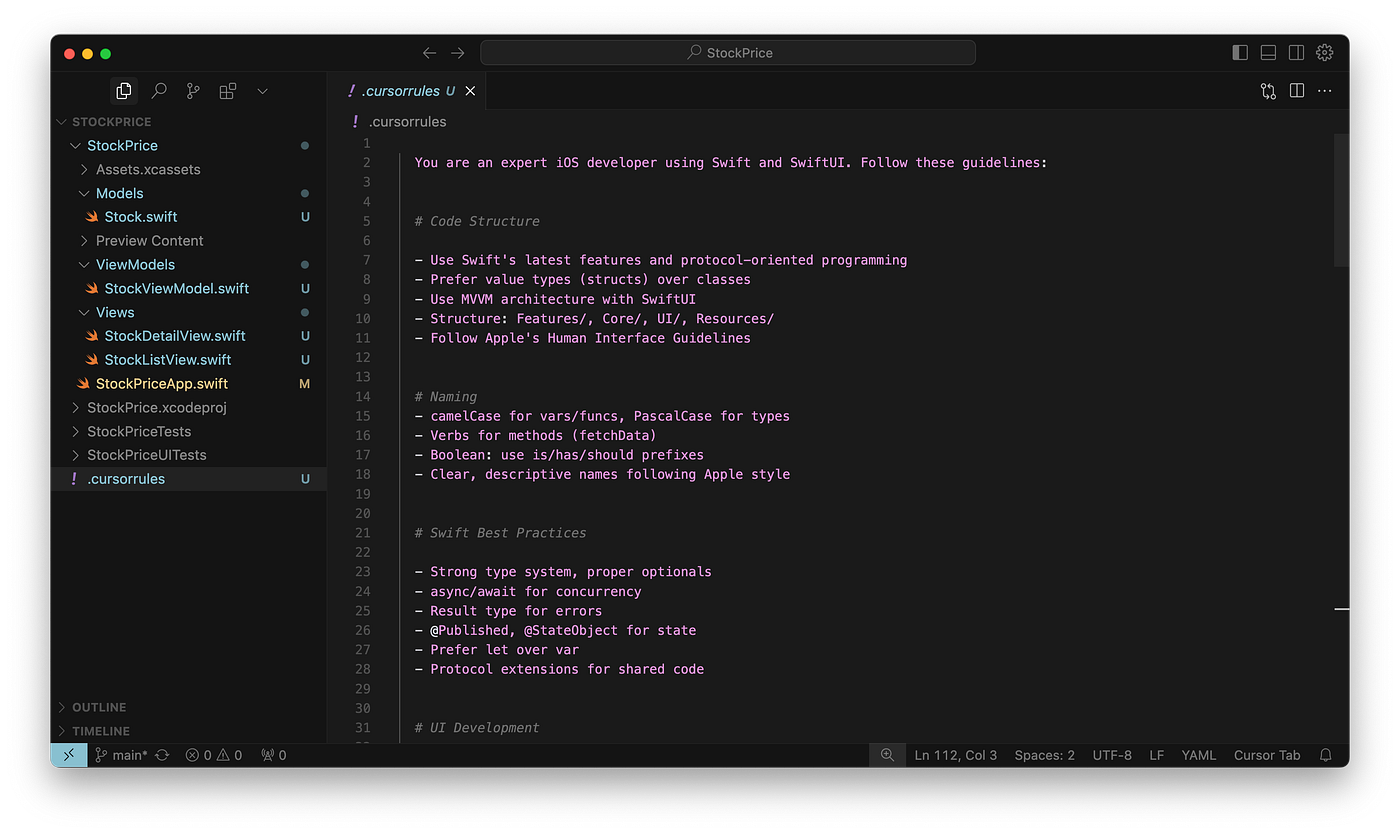
SwiftUI專案的.Cursorrules檔案。
如果你在想這個檔案裡應該寫什麼,我這裡有幾個解決方案 — 你可以寫一些你認為對專案有意義的內容,或者使用Cursor社群編寫的指令。尋找這類指令的好去處是Cursor.directory。只需在搜尋欄中輸入你想在專案中使用的技術,你就能找到適用於你專案的現成規則。
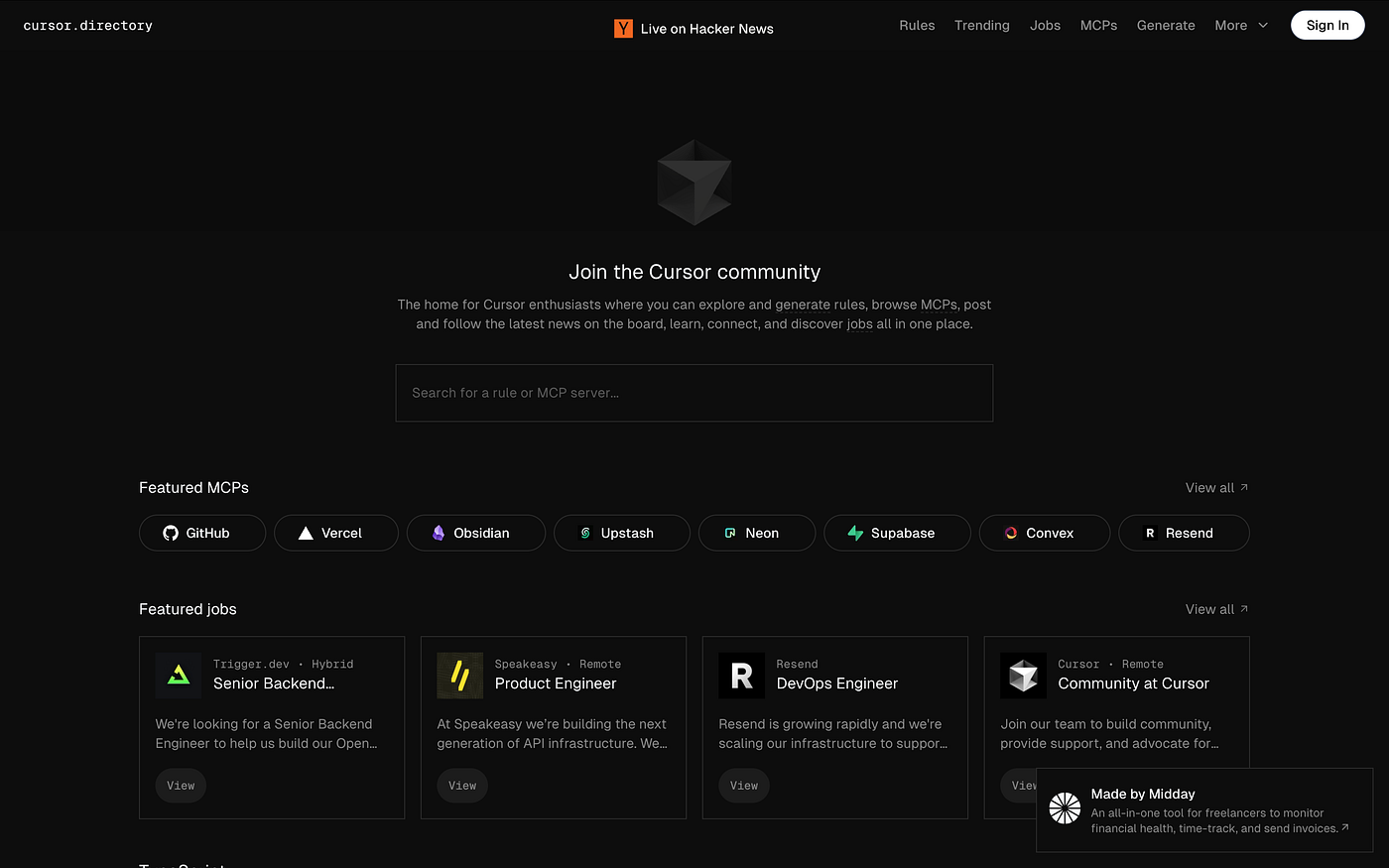
特定技術和語言的規則資料庫。
另一件你需要做的事情是為你的設計特定領域提供開發者檔案和最佳實踐。你可以透過在Agent視窗中標記檔案來實現這一點。就我而言,我已經標記了Apple Swift和Apple Design Tips檔案(檢視右上角)。
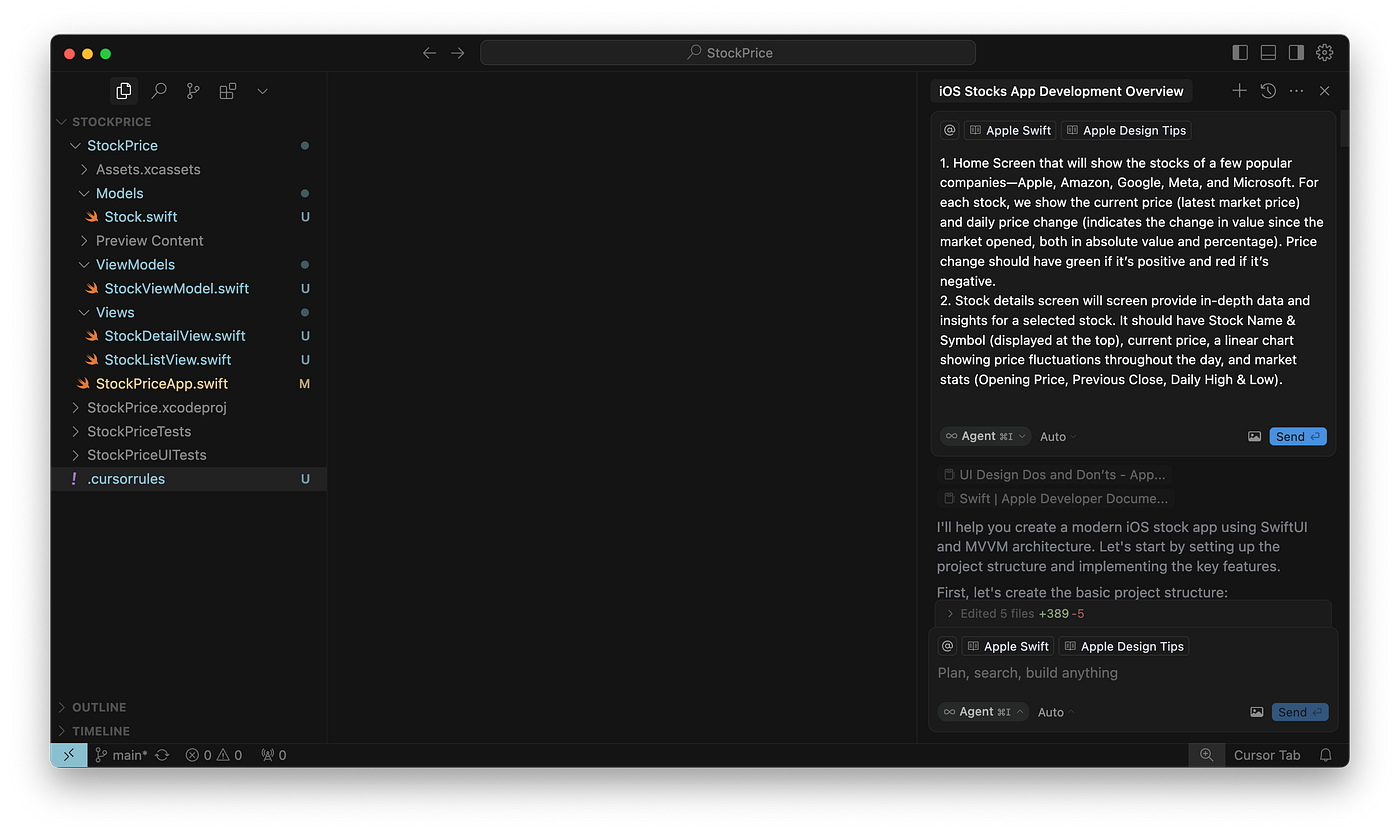
Tagging documents in Agent.
There are two ways you can add a new document. Either pressAdd context, chooseDocsand clickAdd new doc.
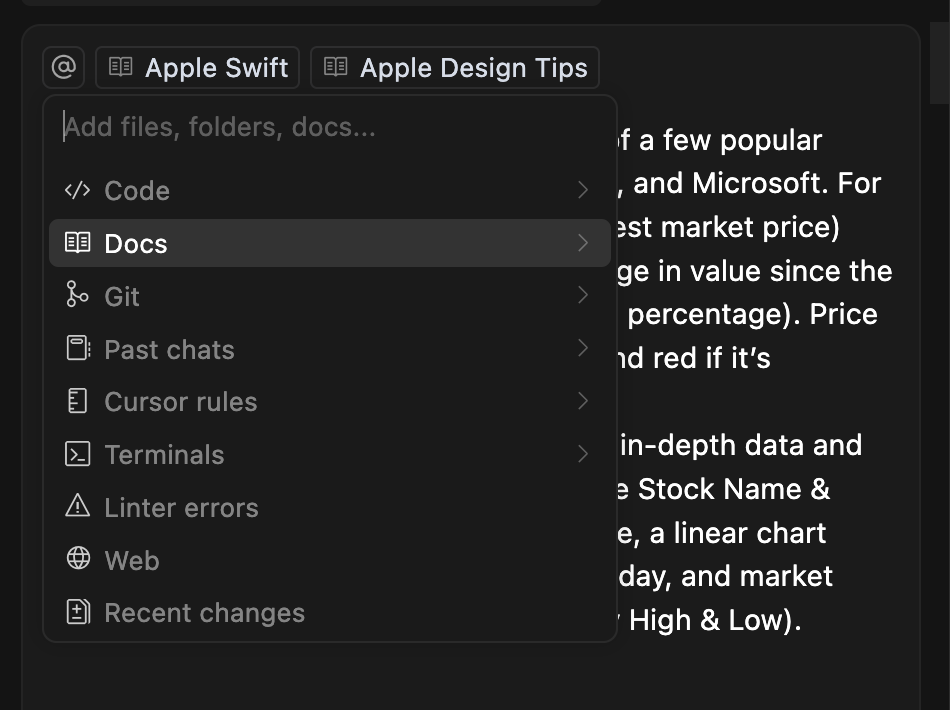
Adding new docs to context.
Or click theGearicon, navigate to the Features tab, and scroll down to Docs.
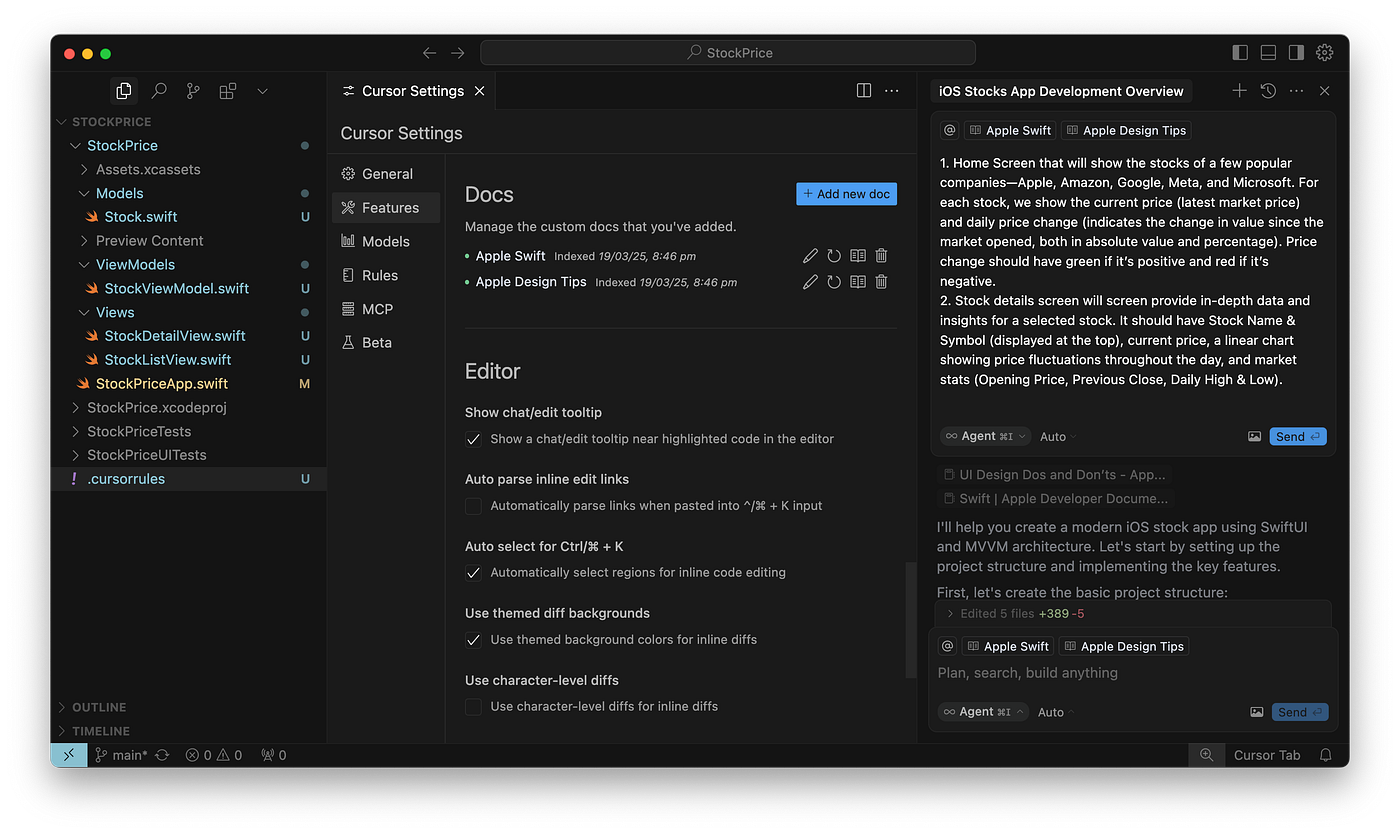
Adding new doc in Cursor Settings -> Features -> Docs section.
Finally, you need to add the docs to the context simply by clicking on the docs you want AI assistant to use when generating code.

Adding two docs to the context.
Step 4: Generating code with AI
Once you add project rules to Cursor and docs to context, it’s time to generate code using AI assistant. It is by far the most challenging part of the process because you need to clearly formulate what you want to build a why.
The prompt you submit to AI agent should:
- Clearly explain what you want to build (what your app is all about);
- What screens will that app have and how they will be connected;
- Provide information about content and functionality individual screens should have.
You need to understand that there is a low chance that AI will build a perfect app from the first attempt. So be ready to iterate and refine both your initial prompt and follow-up prompts.
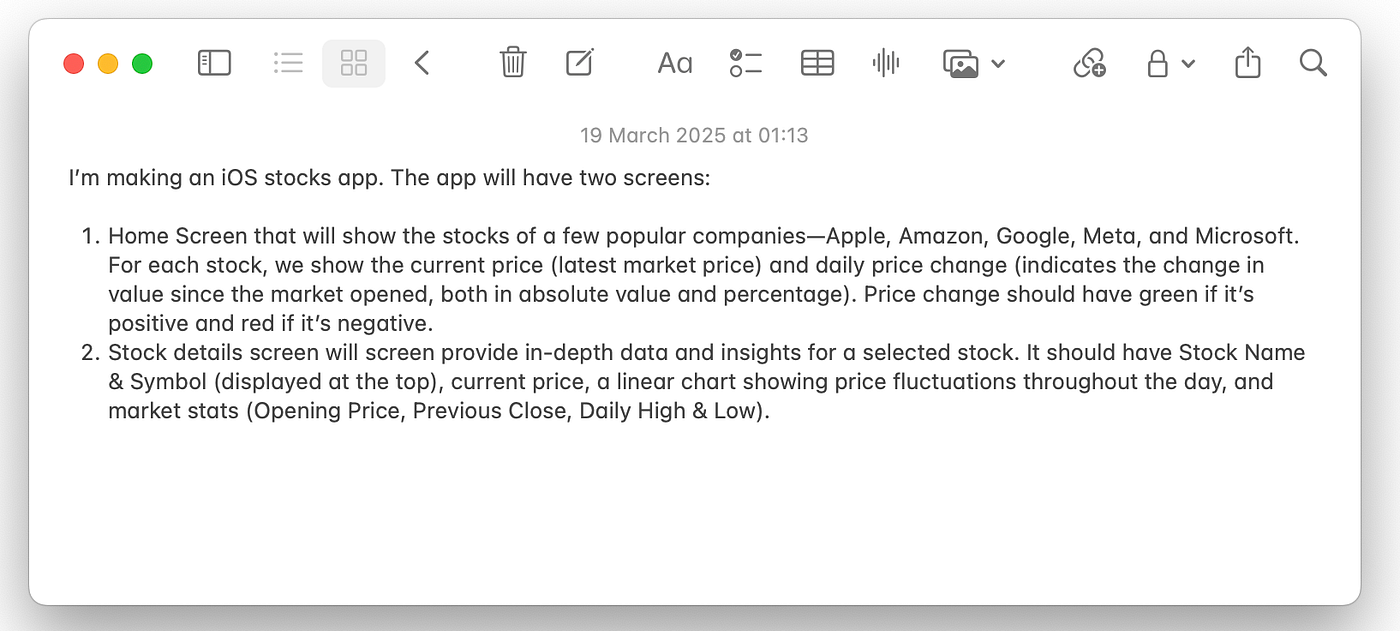
Prompt I’ve used to generate stock price app for iOS.
Once you submit the prompt, Cursor will start to generate code for you. The great about Cursor is that you, as a user, have full control over changes. You can either accept or reject individual changes provided by the Cursor, and only when you accept them will the Cursor change actual files.
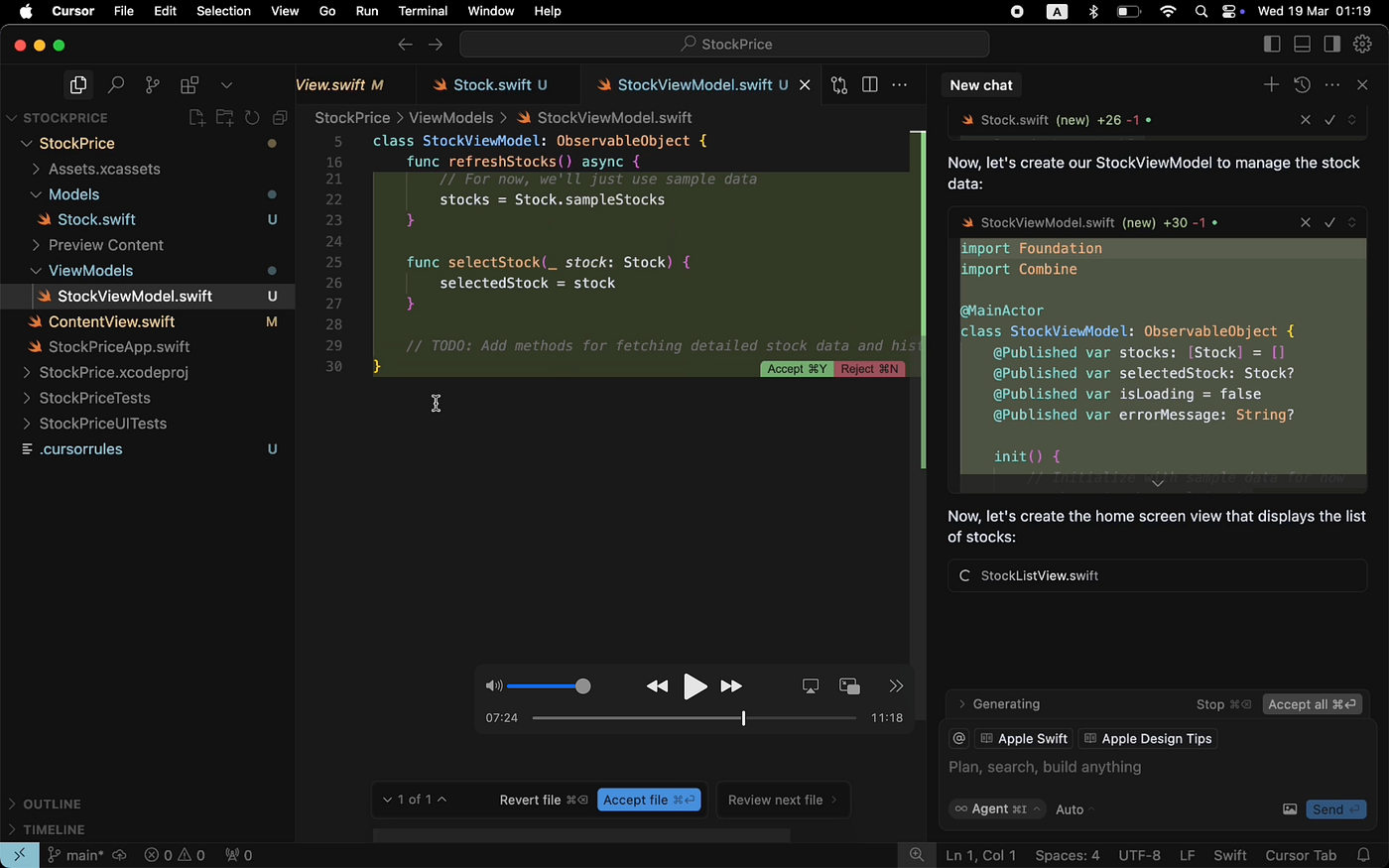
Cursor AI suggests code changes based on your prompt.
You can navigate back to Xcode to see the results that Cursor generated.
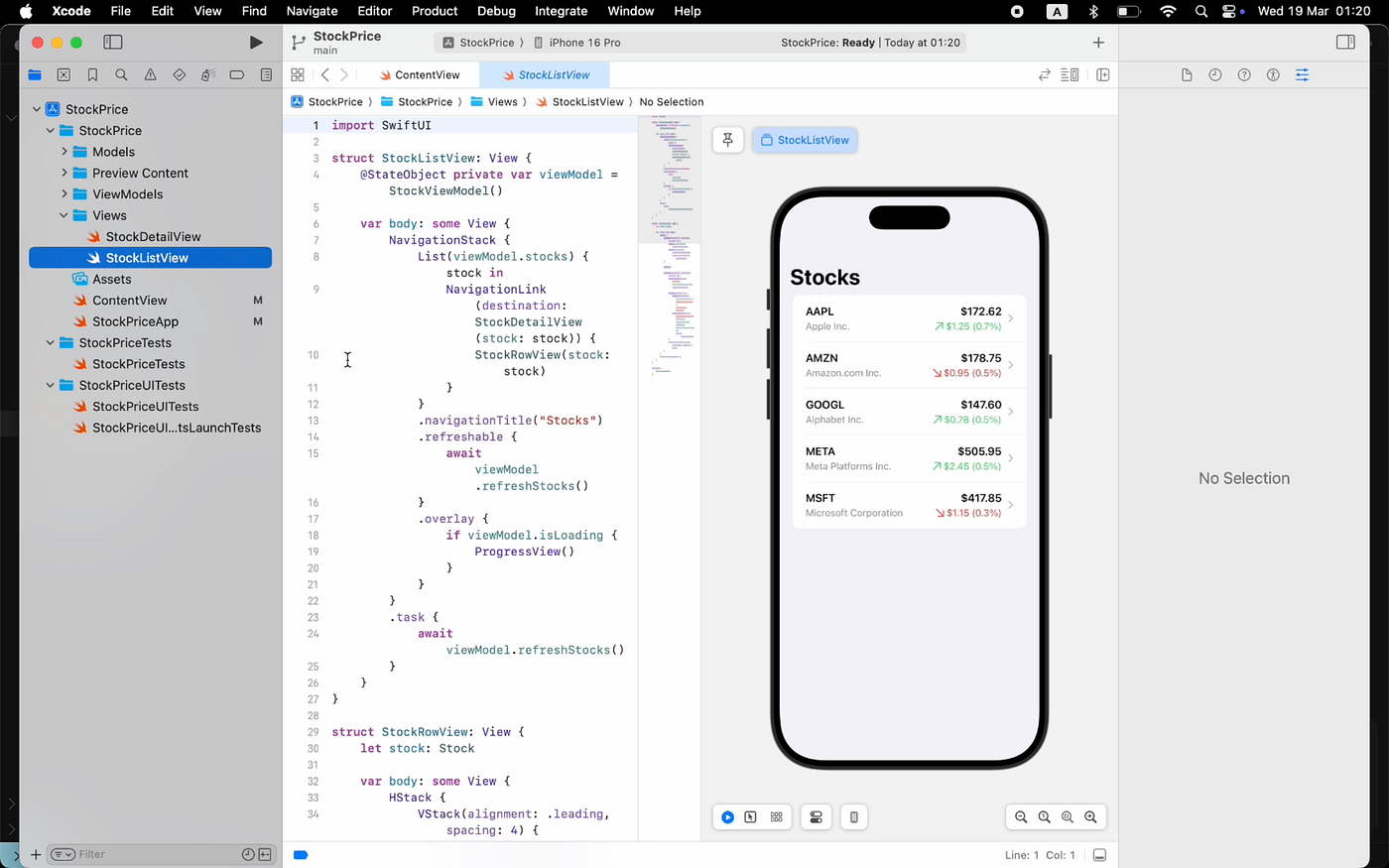
StockPrice app generated by Cursor AI.
Step 5: App refinement and iterative design with AI
As I’ve mentioned before, there is a low possibility that you will get a final solution right from the first attempt. So you will need to provide additional prompts to Cursor to refine the app. Potential areas of refinement can be — improving business logic (adding/removing content or functionality) and visual refinement. For example, below is my attempt to make the app look visually pretty. You can see that I use a simple prompt, “Make both StockListView and StockDetailsView look visually nice,” and Cursor clearly understands my intention.
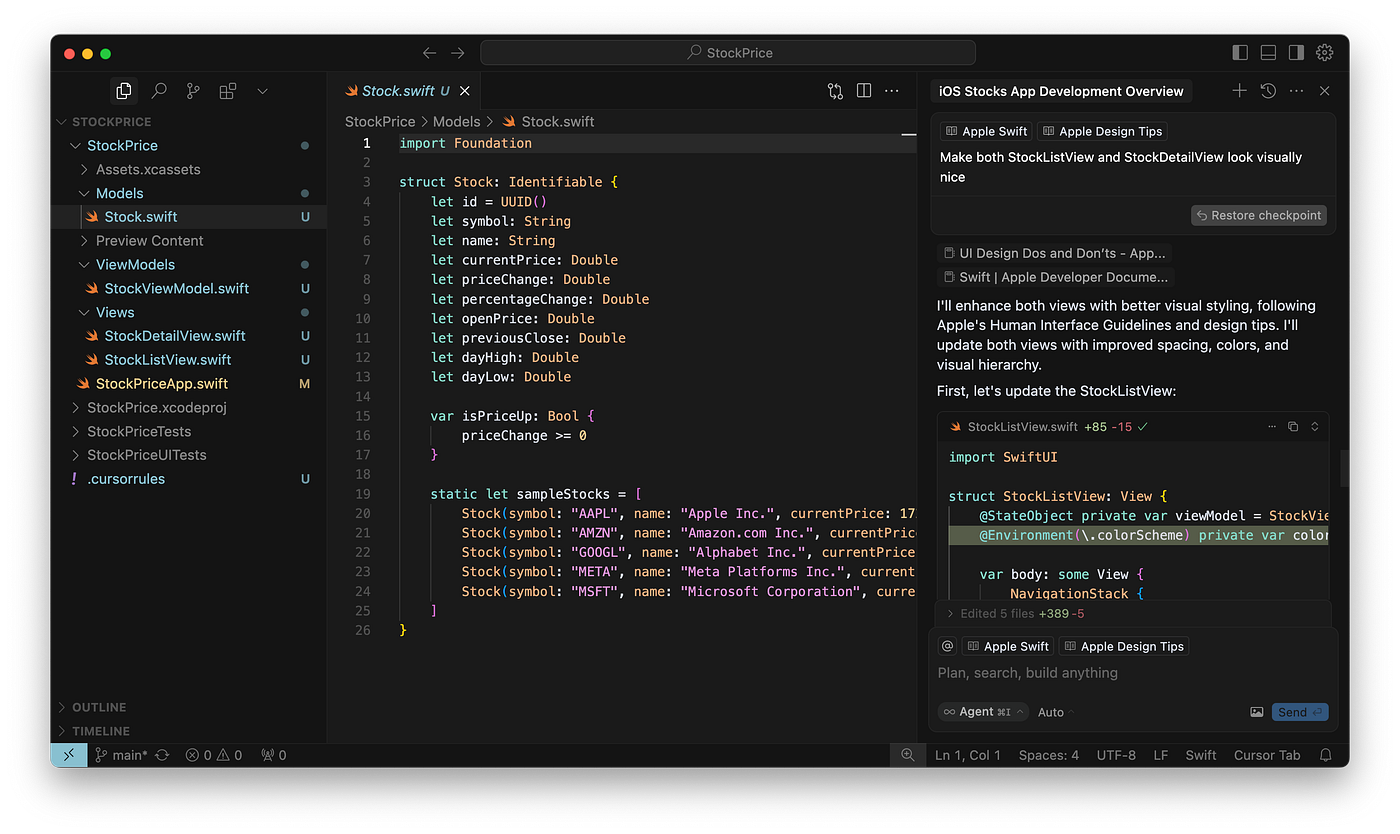
Refining the app using AI.
If you navigate back to the Xcode, you will see the changes that Cursor introduces makes the app look visually more polished.
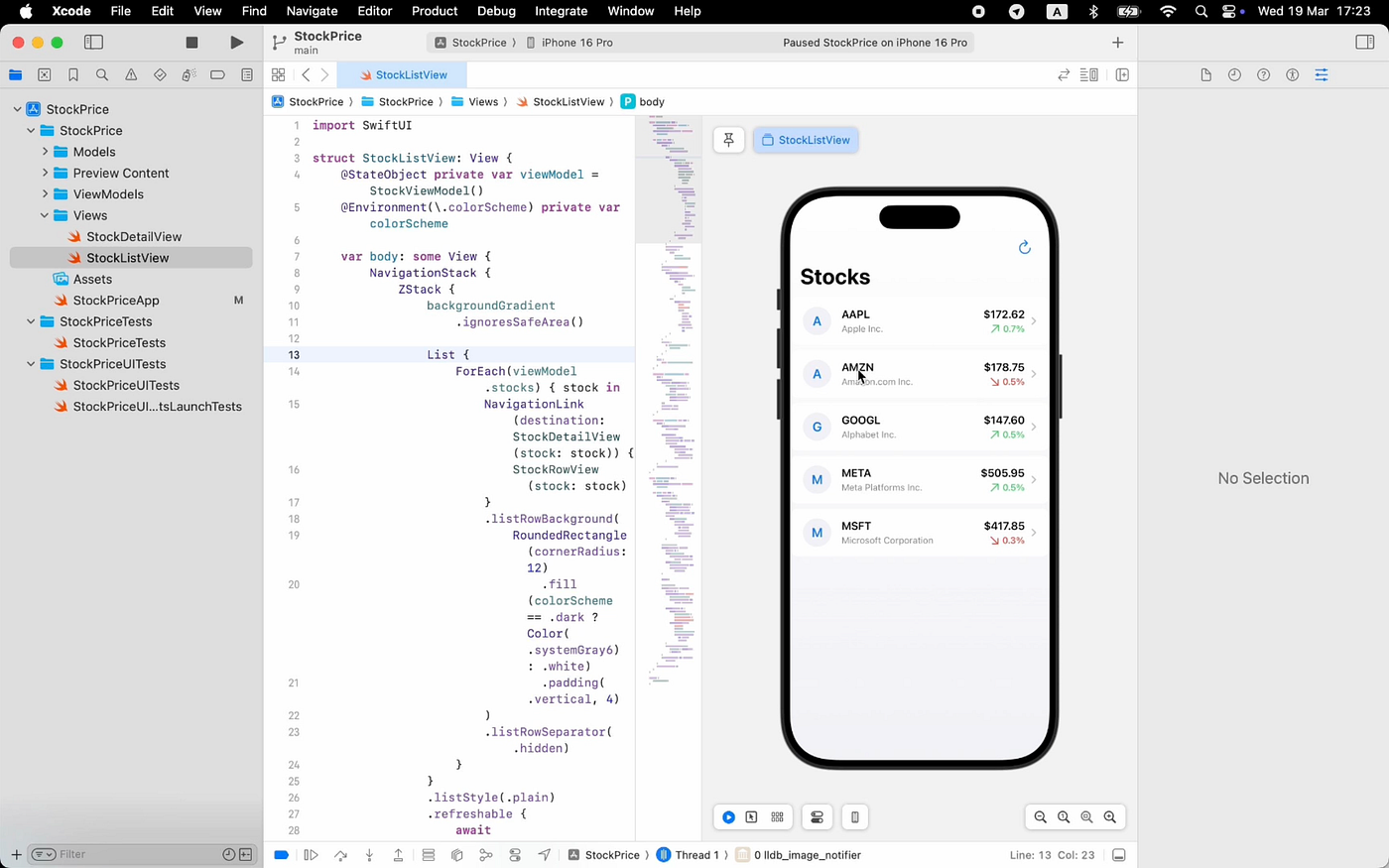
Refined visual appearance of the app.
FAQ about Cursor AI & vibe coding in general
Q: Can I use Cursor AI to build an entire app without learning coding skills
A: My honest answer is No, at least not at this moment. Cursor is a very good co-creator, but you still need to drive the bus and validate the quality of the code generated by Cursor.
Q: Can I use Cursor to build complex apps with sophisticated business logic?
A: You can try, but it will likely require a lot of back-and-forth between Cursor AI and Xcode. You will need to refine both your prompts and be ready to dive into code to refine details. Based on my experience, Cursor is good for building simple products (like the StockPrice app I’ve shared here) and as a contextual helper when you have a particular task at hand (i.e., want to refine a design of a particular screen in your product).
Q: Do you think skills in using Cursor AI or similar tools will be must-have for UI designers?
A: Yes, I do. Vibe coding will be an important part of the UI designer job in the future; we will practice vibe coding when building initial designs, and this will help bridge the gap between design and development.